Phone Setup
Fix iPhone eSIM Hotspot Problems Before You Travel
Fix esim hotspot not working iphone issues with data line, hotspot, roaming, APN, provider rules, and safe reset checks.
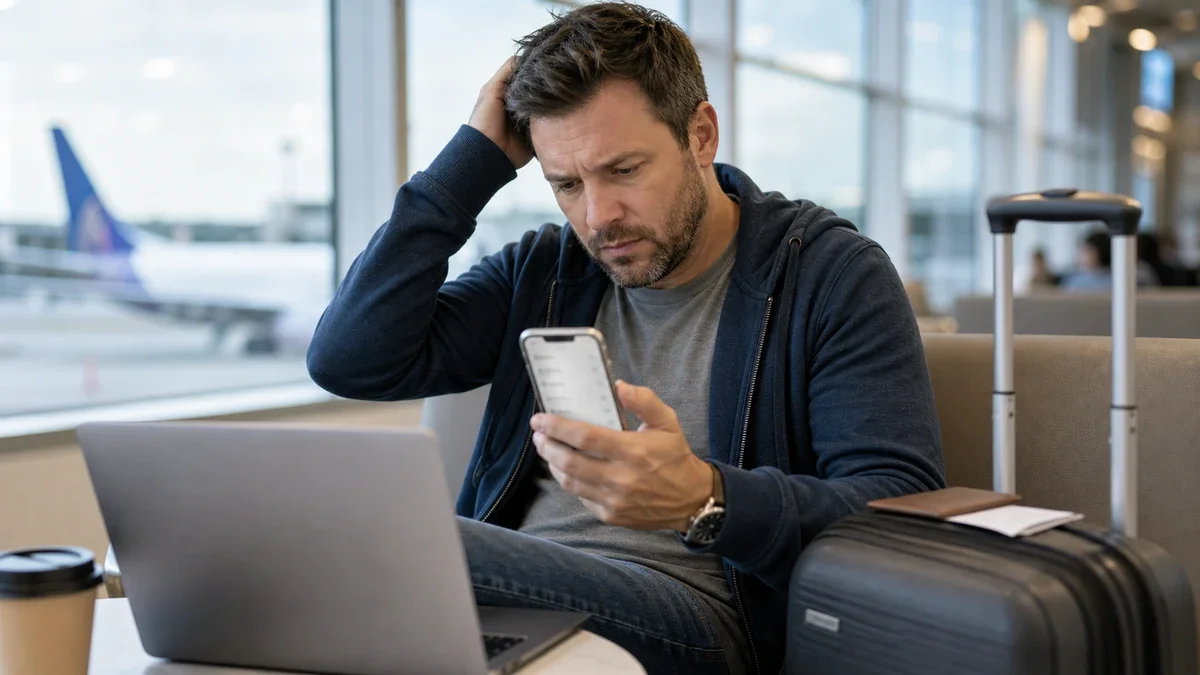
esim hotspot not working iphone is usually a settings problem, a provider tethering limit, or an eSIM that is not actually carrying cellular data. Start with the least risky checks first, because deleting a travel eSIM can create a bigger problem than the hotspot itself.
Use this when your iPhone has mobile data on the eSIM, but your laptop, tablet, or travel partner cannot connect through Personal Hotspot. The goal is to get you back online without burning the eSIM install, losing your primary number, or resetting more than you need.
| What you see | Likely cause | First move |
|---|---|---|
| Hotspot toggle is missing | The active data line or carrier settings are not ready | Confirm the travel eSIM is the cellular data line |
| Other devices see the hotspot but cannot load pages | The eSIM has weak data, roaming is off, or the APN is wrong | Test Safari on the iPhone, then check roaming and provider APN notes |
| The laptop asks for a password again and again | Saved Wi-Fi credentials or compatibility mode is failing | Forget the hotspot network and turn on Maximize Compatibility if shown |
| Hotspot works on the home SIM but not the travel eSIM | The travel plan or network may restrict tethering | Check the eSIM provider's hotspot policy before resetting the phone |
| Everything worked yesterday, then stopped abroad | Network selection, fair-use throttling, or plan expiry changed | Refresh cellular data, check remaining data, and try USB hotspot |
What You Need
- Your unlocked iPhone with the travel eSIM already installed.
- The eSIM provider app, order email, or install instructions.
- A second device to test the hotspot, such as a laptop or tablet.
- Wi-Fi access for provider chat if the eSIM data line is unstable.
- Ten to twenty minutes before you leave the airport, hotel, train, or port.
If the eSIM is not installed yet, start with setting up a travel eSIM on iPhone. If you are moving phones, do not delete anything until you read the guide to moving a travel eSIM to a new iPhone.
Step 1: Confirm the Travel eSIM Has Data
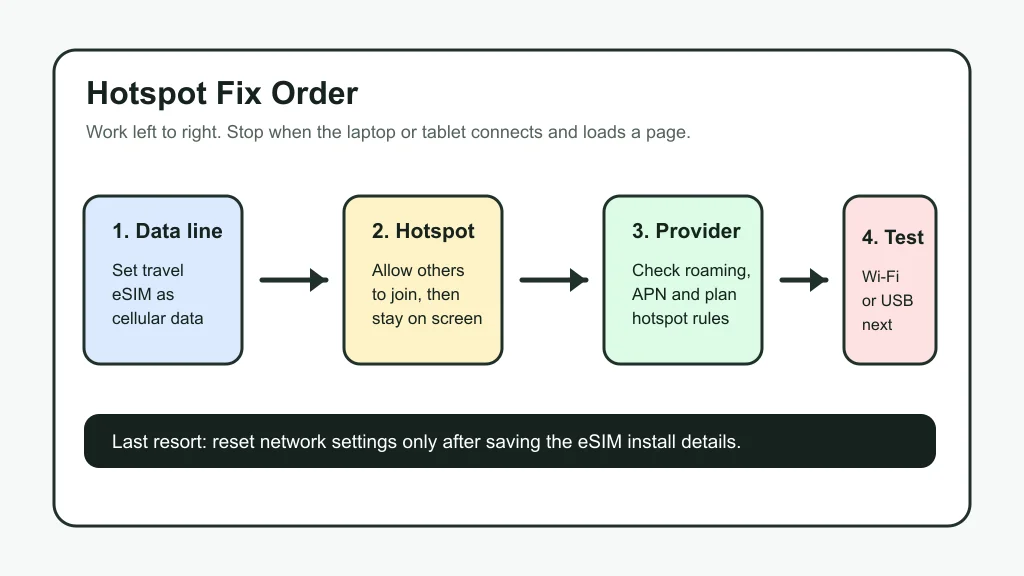
Estimated time: 4 minutes. Open Settings, then Cellular. Under Cellular Data, choose the travel eSIM you want to share. If your iPhone is still using your home SIM for data, Personal Hotspot may be sharing the wrong line or failing because roaming is blocked on that line.
- Turn off Wi-Fi on the iPhone.
- Open Safari and load a fresh web page.
- If the page does not load, fix mobile data before touching Personal Hotspot.
- Open Cellular Data Options for the travel eSIM and turn on Data Roaming if your provider instructions require it.
- Check the eSIM app for plan expiry, remaining data, and any speed or fair-use notice.
Travel plans vary by country and trip shape. A regional plan from a Spain eSIM guide, France eSIM guide, or Italy eSIM guide may behave differently from a single-country plan in Morocco, Bali, Iceland, or Turkey.
Step 2: Fix esim hotspot not working iphone settings
Estimated time: 6 minutes. After the eSIM data line works on the iPhone, go to Settings, then Personal Hotspot. Turn on Allow Others to Join and leave that screen open while the other device tries to connect.
- Tap Wi-Fi Password and set a plain password you can type accurately.
- On iPhone 12 or newer, turn on Maximize Compatibility if the other device keeps failing to join.
- On the laptop or tablet, forget the old iPhone hotspot network, then reconnect fresh.
- Make sure Bluetooth and Wi-Fi are on if you are using another Apple device with Instant Hotspot.
- If Wi-Fi fails, try a USB cable to separate iPhone hotspot problems from Wi-Fi pairing problems.
Honestly, most quick fixes skip the screen-open part. Do not. Apple tells users to turn on Allow Others to Join, and for Bluetooth setup, stay on the Bluetooth screen until the other device connects. That same patience often helps with Wi-Fi discovery too.
Step 3: Check APN, Roaming, and Provider Hotspot Rules
Estimated time: 8 minutes. If the iPhone has data but hotspot still fails, check the provider instructions. Some travel eSIMs need a specific APN. Some allow tethering only when the device and network support it. A few unlimited-style plans also slow or limit hotspot use after a fair-use threshold.
- Open the eSIM provider app or install email.
- Look for APN, personal hotspot, tethering, or roaming instructions.
- In Settings, open Cellular, tap the travel eSIM, then review Cellular Data Network if that menu appears.
- Do not guess APN values from forum posts unless the provider confirms them for your exact plan.
- Restart the iPhone after changing APN or roaming settings, then test again.
Provider choice matters when hotspot is part of your travel workflow. Compare plan rules before buying, especially for remote work, family sharing, or backup data. The digital nomad eSIM guide, Nomad vs Airalo comparison, and Holafly vs Airalo comparison are useful before you rely on one phone as the whole trip's router.
Step 4: Test a Different Connection Method
Estimated time: 7 minutes. A hotspot problem can sit on either side of the connection. The iPhone may be fine while the laptop has a stale Wi-Fi profile. Or the laptop may be fine while the iPhone is stuck on a weak roaming network.
- Try a second device, ideally a phone or tablet that has not joined this hotspot before.
- Switch the iPhone to airplane mode for ten seconds, then turn cellular back on.
- Try USB tethering to a laptop with the proper Apple software installed.
- Move near a window or outside if signal is poor inside a hotel, train, or cruise terminal.
- If the phone shows 3G, EDGE, or no data icon, wait for a stronger network before judging the hotspot.
Trip type changes the fix. Cruise itineraries need a different plan from city travel, so read the cruise eSIM guide before assuming port-day data will work at sea. For heavier map, messaging, and work use, the backup data guide for digital nomads helps you plan a second line.
Step 5: Reset Network Settings Only as a Last Resort
Estimated time: 10 minutes. Reset Network Settings can clear broken cellular and Wi-Fi behavior, but it also removes saved Wi-Fi networks, VPN settings, and cellular preferences. Treat it as the last software step, not the first one.
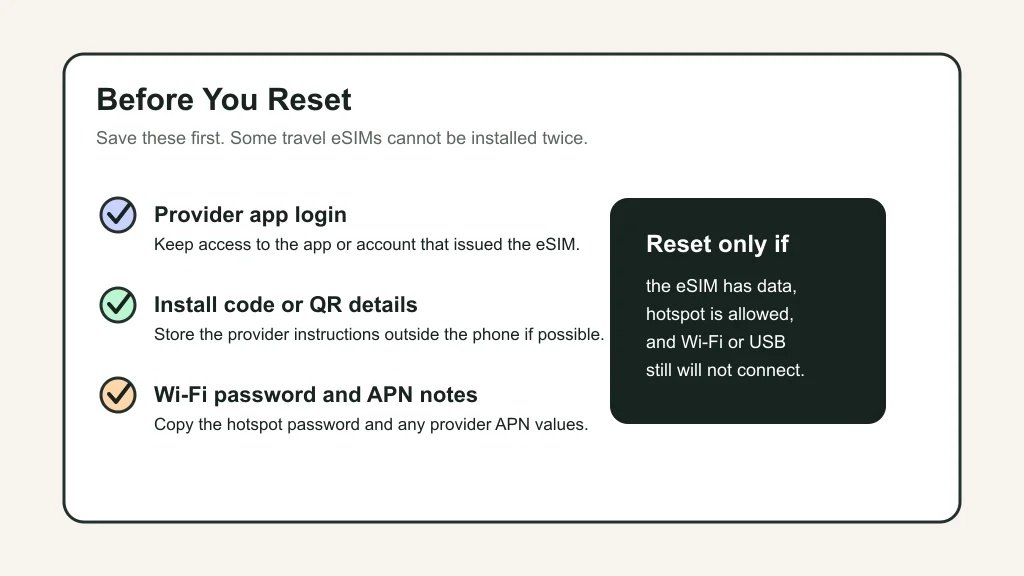
- Save your eSIM provider login and install details.
- Screenshot the hotspot password and any APN instructions.
- Go to Settings, General, Transfer or Reset iPhone, Reset.
- Choose Reset Network Settings, then confirm.
- After restart, select the travel eSIM as Cellular Data again and retest hotspot.
If your eSIM itself is not activating, use the guide to fixing an eSIM before deleting the profile. If you are still deciding whether hotspot data beats carrier roaming, the eSIM vs roaming cost guide can keep the math honest.
Plan Better for the Next Trip
Hotspot problems are easier to avoid than to fix in a taxi queue. Before buying, check the destination, data allowance, hotspot policy, and whether you need one country or several. Start with the UK eSIM guide, Thailand eSIM guide, and the single-country checks above if those match your route.
Price can be misleading when hotspot is involved. A cheap plan that blocks tethering is not cheap if you need to work from a laptop, so compare the real cost of cheap Europe eSIMs against your actual data habits. If setup Wi-Fi is your only worry, read whether eSIM works without Wi-Fi before landing.
Quick Checklist
- Set the travel eSIM as the iPhone's Cellular Data line.
- Load a web page on the iPhone with Wi-Fi turned off.
- Turn on Personal Hotspot and Allow Others to Join.
- Forget the old hotspot network on the laptop or tablet.
- Check provider APN, roaming, data balance, and tethering rules.
- Try Maximize Compatibility, USB hotspot, or a second test device.
- Reset network settings only after saving eSIM install details.
Most iPhone eSIM hotspot failures come down to one of three things: the wrong data line, a provider rule, or a stuck Wi-Fi handshake. Work in that order and you will usually avoid the most painful fix, deleting the eSIM when the eSIM was never the real problem.
Official sources: Apple Support: Connect to Personal Hotspot · Airalo Help: Can I use tethering?.
Frequently Asked Questions
why is my eSIM hotspot not working on iPhone?
The usual causes are the wrong cellular data line, roaming being off, weak mobile data, a wrong APN, stale Wi-Fi credentials on the other device, or a travel eSIM plan that does not support tethering on that network.
can I use hotspot with a travel eSIM on iPhone?
Often yes, but it depends on the eSIM provider, device, plan, and visited network. Test hotspot before you need it for work, and check the provider's tethering notes before buying an unlimited-style plan.
how do I make my iPhone hotspot use eSIM data?
Go to Settings, Cellular, then Cellular Data, and choose the travel eSIM. After that, open Personal Hotspot and turn on Allow Others to Join. Test the iPhone's own mobile data first.
should I delete and reinstall my eSIM if hotspot fails?
No, not as a first move. Many travel eSIMs cannot be reused after deletion, or they require provider support to reinstall. Fix cellular data, hotspot settings, APN, and network settings before deleting anything.
does resetting network settings remove my eSIM?
Reset Network Settings should not delete the eSIM profile, but it does clear Wi-Fi networks and cellular preferences. Save provider details anyway, then reselect the travel eSIM as the data line after the restart.